Build an n8n RSS Feed Automation Workflow in Minutes

We've all been there. It's 8:00 AM, you're downing your first cup of coffee, and you have 40 browser tabs open. You're staring at your screen, manually refreshing your favorite engineering blogs, industry news sites, and GitHub release pages just to stay updated. The manual copy-paste fatigue sets in, and you think, "I'm a developer. Why am I doing this by hand?"
If you're tired of playing human RSS reader, you are in exactly the right place. Shall we solve this beautifully together? ✨
As we set up in Episode 2, our self-hosted n8n instance is purring along happily via Docker Compose. Today, we're going to put it to work by building a robust n8n rss feed automation workflow. We aren't just going to fetch XML data; we're going to build a smart, deduplicating, keyword-filtering pipeline that respects server limits and respects your time.
Let's dive into the architecture of our new content bouncer!
The Mental Model: The Content Bouncer
When we design an automation pipeline, it helps to visualize the data flow before we drag a single node onto the canvas. I like to think of this workflow as an exclusive nightclub for content.
1. The Promoter (Schedule Trigger): Wakes up every 15 minutes and says, "Time to look for new guests!"
2. The Bus (RSS Read Node): Drives to the blog and picks up everyone (all recent articles).
3. The Bouncer (Deduplication Logic): Checks the VIP list. "Wait, we already let you in yesterday. Go home."
4. The VIP Manager (Filter Node): Checks the dress code. "Does this article mention 'React', 'Vue', or 'Performance'? Yes? Come on in."
Here is what that looks like structurally:
By visualizing the component tree and data flow this way, we immediately see where bottlenecks might occur. If we don't deduplicate, our downstream systems (like Slack notifications or databases) will get hammered with the same 20 articles every 15 minutes. Not a great Developer Experience (DX) for whoever is managing that database!
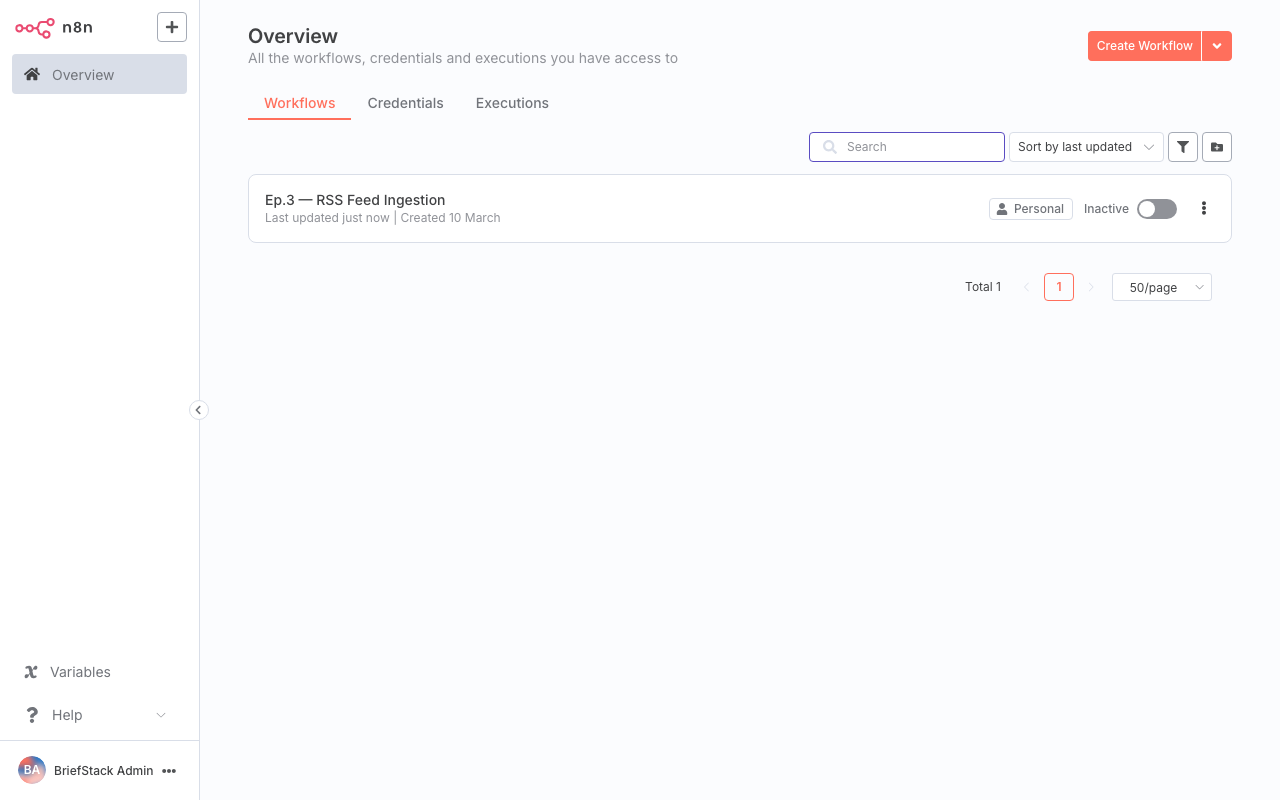
The n8n dashboard where we'll organize our new content curation pipeline. Keeping your workflows categorized by tags here is a huge DX win as your instance grows.
Deep Dive & Code: Building the Pipeline
Let's get our hands dirty and build this step-by-step. I'll provide the exact reasoning for why we configure things this way, rather than just telling you what buttons to click.
1. The Heartbeat: Cron Trigger Scheduling
First, we need a Schedule Trigger node. This dictates how often our workflow runs.
The DX Tip: It's tempting to set this to run every 1 minute. Don't do it! 🚀 RSS feeds are static XML files hosted on other people's servers. Hitting them every 60 seconds is impolite and can get your IP banned.
Set your Schedule Trigger to run Every 15 Minutes or Every Hour. This is the perfect balance between getting fresh content and being a good internet citizen.
2. Fetching the Data: RSS Node Configuration
Next, add the RSS Read node.
In the node settings, you simply paste the URL of the RSS feed (e.g., https://news.ycombinator.com/rss or your favorite Vue.js blog).
Why is n8n so magical here? If you were writing this in raw Node.js, you'd have to pull in axios, fetch the XML, realize it's a giant string, pull in xml2js, parse it, and map the messy XML arrays into clean JSON objects. The n8n RSS node does all of this automatically. It outputs a beautifully clean JSON array of items, each with a title, link, content, and pubDate.
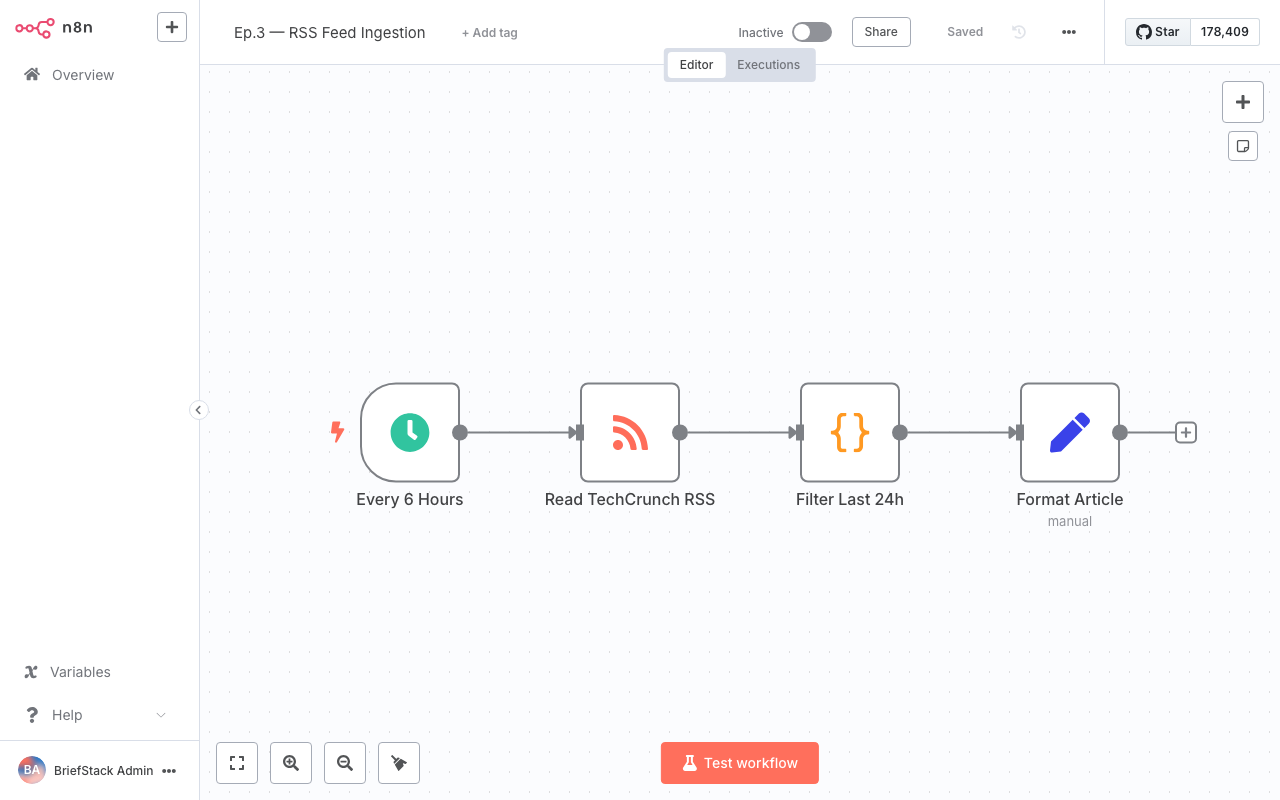
Our workflow editor in action. Notice how the data flows linearly from left to right. The green checkmarks indicate successful test executions, showing us the parsed JSON output in real-time.
3. The Bouncer: Storing Items to Avoid Duplicates
This is where most basic tutorials stop, but we are engineers, and we build for production. 💡
Every time the RSS node runs, it fetches all items currently in the feed (usually the last 10-20 posts). If we don't filter out the ones we've already processed, we'll process them again.
We could spin up a Redis container or a Postgres database to store processed IDs. But remember our DX-first philosophy? Let's go home early. n8n has a brilliant built-in feature called Static Data.
Static Data allows a workflow to remember small pieces of JSON between executions without needing an external database. Let's add a Code Node right after our RSS node and use this elegant snippet:
// 1. Get the static data store for this specific workflow
const staticData = $getWorkflowStaticData('global');

// 2. Initialize our memory array if it doesn't exist yet
staticData.processedGuids = staticData.processedGuids || [];

const newItems = [];

// 3. Loop through all items fetched by the RSS node
for (const item of $input.all()) {
  // RSS feeds usually have a unique 'guid' or 'link'
  const uniqueId = item.json.guid || item.json.link;

  // 4. If we haven't seen this ID before, it's new!
  if (!staticData.processedGuids.includes(uniqueId)) {
    newItems.push(item);
    staticData.processedGuids.push(uniqueId); // Remember it for next time
  }
}

// 5. DX Optimization: Prevent memory leaks!
// Keep only the last 500 IDs so our static data doesn't grow infinitely
if (staticData.processedGuids.length > 500) {
  staticData.processedGuids = staticData.processedGuids.slice(-500);
}

// 6. Return ONLY the new items to the next node
return newItems;
Why this code is better:
We aren't just blindly pushing IDs into an array. We are actively managing memory by slicing the array if it gets over 500 items. This ensures our workflow stays lightning fast and doesn't crash n8n's internal SQLite database months from now. Lean, mean, and pragmatic!
4. The VIP Manager: Filtering by Keyword Relevance
Now our workflow only outputs new articles. But what if we only care about specific topics? If we're subscribing to a massive feed like Hacker News or a generic tech publication, we want to filter the noise.
We can use the built-in Filter Node (or an IF node in older n8n versions).
Set up a condition:
- Value 1:
={{ $json.title }} {{ $json.content }}(We concatenate title and content to search both) - Operation:
Contains - Value 2:
React
But wait, what if we have multiple keywords? Setting up 15 OR conditions in a UI can be tedious. From a DX perspective, sometimes writing 5 lines of code is faster than clicking 30 times in a GUI.
If you prefer code, you can use another Code Node for advanced filtering:
const targetKeywords = ['react', 'vue', 'performance', 'dx', 'architecture'];
const filteredItems = [];

for (const item of $input.all()) {
  // Grab the text and make it lowercase for easy matching
  const textToSearch = ${item.json.title} ${item.json.content}.toLowerCase();

  // Check if ANY of our target keywords exist in the text
  const isRelevant = targetKeywords.some(keyword => textToSearch.includes(keyword));

  if (isRelevant) {
    filteredItems.push(item);
  }
}

return filteredItems;
Using .some() and .includes() makes this logic incredibly readable. Fellow developers reviewing your workflow will instantly understand what's happening.
Performance vs DX: Why This Approach Wins
Let's take a step back and evaluate what we just built from both sides of the aisle.
From a Performance Perspective:
By putting the Deduplication node before the Filter node, we save CPU cycles. String matching (especially if you upgrade to Regex later) is computationally more expensive than checking an array for an exact string match (our GUID check). We drop the heavy payload early in the pipeline. Furthermore, by managing the size of our processedGuids array, we guarantee O(1) memory usage over time.
From a Developer Experience (DX) Perspective:
Think about how this feels to maintain. If you want to add a new keyword, you don't have to dig through complex server logs or redeploy a Node.js app. You open the n8n UI, click the Code node, add 'typescript' to your array, and hit save.
Visualizing the data flow means when something breaks, you know exactly where to look. If the RSS node has a green checkmark but the Filter node outputs nothing, you instantly know the feed is working, but no articles matched your keywords today. No console.log hunting required!
Wrapping Up
Look at that! In just a few minutes, we've built a robust, polite, memory-safe n8n rss feed automation workflow. Your components are way leaner now, and you've successfully automated the most tedious part of your morning routine. Happy Coding! ✨
But wait... right now, our workflow just filters by exact keyword matches. What if an article is about "Frontend State Management" but doesn't explicitly use the word "React"?
In Episode 4: Content Filtering and Scoring with n8n, we're going to level up. We'll introduce sentiment analysis and dynamic scoring algorithms to rank the quality of the content before we send it to our reading list. You won't want to miss it!
Frequently Asked Questions
Why does my RSS Node return an error about invalid XML?
Not all RSS feeds are perfectly formatted. Sometimes publishers include invalid characters. If you encounter this, you can try using an HTTP Request node to fetch the raw data, and a Code node to sanitize the string before passing it to an XML parser, though 99% of modern feeds work perfectly with the native RSS node.Can I use a database instead of Static Data for deduplication?
Absolutely! While Static Data is amazing for DX and quick setups, if you are running n8n in a highly available cluster with multiple workers, Static Data might not sync perfectly across distributed nodes. In that case, swapping the Code node for a Redis or Postgres node to check/store GUIDs is the enterprise-grade solution.How do I test the cron trigger without waiting 15 minutes?
In the n8n workflow editor, you don't have to wait for the schedule! You can simply click the "Execute Workflow" button at the bottom of the screen. This will trigger the workflow immediately as if the schedule had fired, allowing for rapid testing and iteration.Will the Static Data persist if I restart my n8n Docker container?
Yes. As long as you followed our Docker Compose setup in Episode 2 and mapped your volumes correctly (~/.n8n to the container), n8n's internal SQLite database (which stores the static data) will persist across container restarts and updates.